Scripting
Scripts add your own actions to Ammonite's right-click menu. A script is just an executable file in a folder: write it in shell, Python or anything else you can run, and Ammonite hands it the files you have selected.
1. Quick start
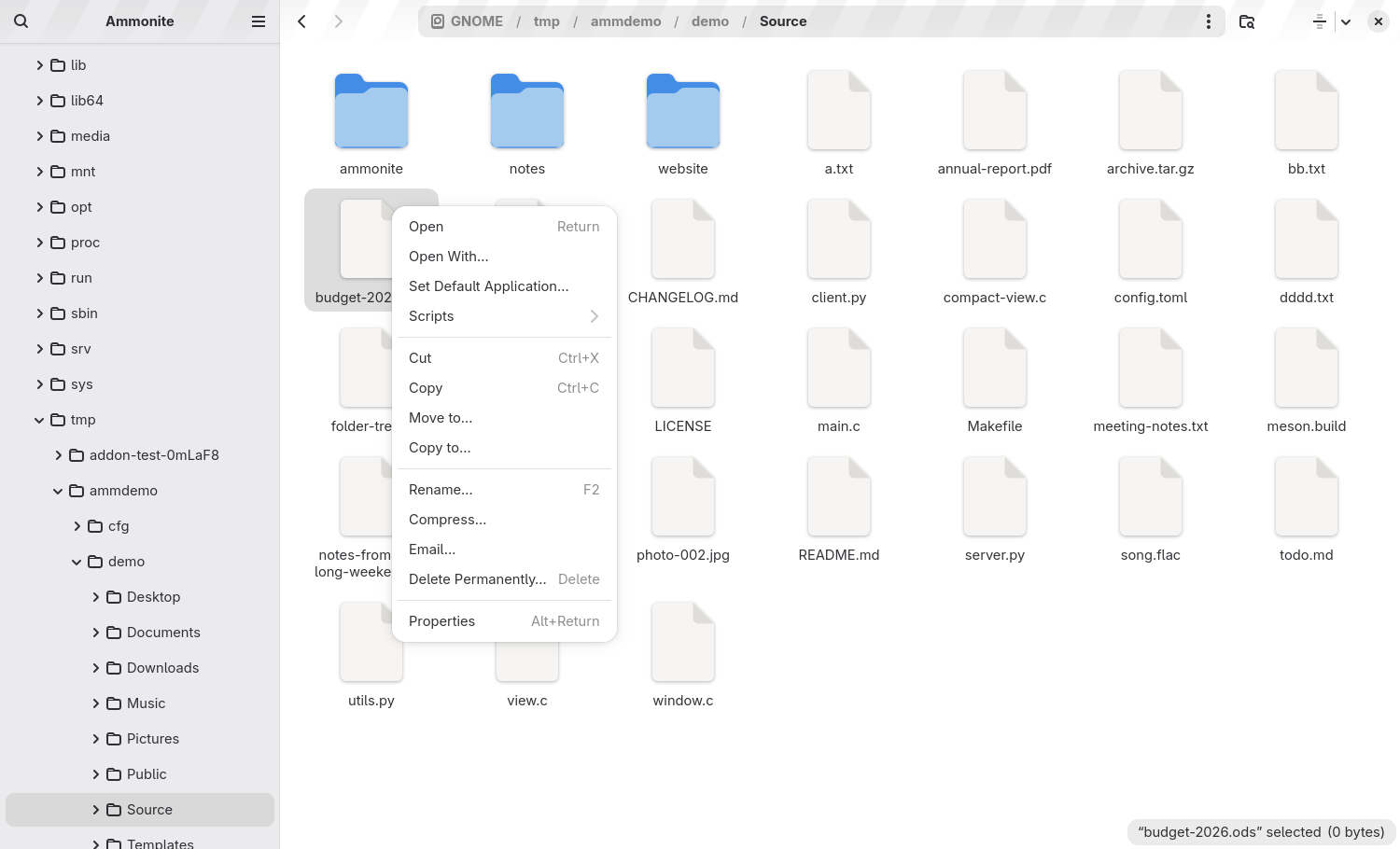
- Right-click a file, choose Scripts → Open Scripts Folder. (Or open the folder from a terminal. Its path is below.)
- Create a file there called
Make backup copywith these contents:#!/bin/bash for f in "$@"; do cp -- "$f" "$f.bak" done - Make it executable:
chmod +x "Make backup copy" - Select some files, right-click, and choose Scripts → Make backup copy. Each selected file now has a
.baksibling.
The menu updates by itself when you add, remove or rename scripts. There is no need to restart Ammonite.
2. The scripts folder
| How you run Ammonite | Scripts folder |
|---|---|
| Flatpak | ~/.local/share/ammonite/scripts |
| Installed normally | $XDG_DATA_HOME/ammonite/scripts, which is normally ~/.local/share/ammonite/scripts |
The folder is created for you. It is separate from Nautilus' ~/.local/share/nautilus/scripts and Caja's
~/.config/caja/scripts, so nothing is picked up from those automatically. See Coming from Caja.
3. How scripts appear in the menu
- Only executable files are listed. A file that is not executable is ignored, so
chmod +xyour script. - The menu entry is the file name, exactly as written.
Make backup copyshows as Make backup copy. Pick a name that reads well as a menu item, and don't add an extension unless you want it shown. - Entries are sorted by name. Prefix names with numbers (
10 Resize,20 Backup) to control the order. - Sub-folders become sub-menus. A folder called
ImagescontainingResize to 50%gives you Scripts → Images → Resize to 50%, to any depth. A folder with no usable scripts inside it is left out. - Hidden files and folders (names starting with a dot) are not shown. Use that for helper files your scripts share.
- At most 30 entries are listed per folder. Use sub-folders to organise anything larger.
- The Scripts entry is in the context menu of a selection in normal folder views. Its last item, Open Scripts Folder, is always there.
4. How a script is run
- The script is started directly, so it needs a valid first line such as
#!/bin/bashor#!/usr/bin/env python3. - Its working directory is the folder you are viewing, as long as that folder is on a local disk. That is why file names are passed as short, relative names.
- The selection is passed to the script at the moment you click the menu item.
- Ammonite does not wait for the script, and does not show a terminal window for it. Your file manager stays responsive while it runs.
- Scripts are offered for selected items, so select at least one file or folder first. The Scripts entry is in the right-click menu of a selection, not in the menu of an empty area.
5. Arguments
The selected files are passed as command-line arguments, one per file, in the order Ammonite lists them.
| Situation | What the arguments look like |
|---|---|
| Selected file is inside the folder you are viewing | The bare name, for example photo-001.jpg |
| Selected file is somewhere else, for example in search results | The full path, for example /home/you/Pictures/photo-001.jpg |
| Any selected item is not a local file (network share, trash, recent files…) | No arguments at all. Use the environment variables instead, which carry URIs. |
Always quote "$@" and each file variable ("$f"). File names can contain spaces, quotes and other characters that would otherwise be split by the shell.
6. Environment variables
Ammonite sets three environment variables for the script. They are only set while the script is being started, and are not present anywhere else.
| Variable | Contents |
|---|---|
AMMONITE_SCRIPT_SELECTED_FILE_PATHS |
The selected files as full local paths, separated by newlines, with a newline after the last one. If any selected item is not a local file, this is an empty string. |
AMMONITE_SCRIPT_SELECTED_URIS |
The selected files as URIs, separated by newlines. This works for every kind of location, local or remote. |
AMMONITE_SCRIPT_CURRENT_URI |
The URI of the folder being viewed, for example file:///home/you/Documents or smb://server/share. |
Because paths are separated by newlines, read them line by line. In bash:
while IFS= read -r path; do
  [ -n "$path" ] || continue
  echo "Selected: $path"
done <<< "$AMMONITE_SCRIPT_SELECTED_FILE_PATHS"
A file name that itself contains a newline cannot be represented this way. Use the arguments for those.
For locations that are not local (a network share, say), work from the URIs with tools that understand them, such as gio copy, gio cat and gio open.
7. Keyboard shortcuts
A script can be given its own shortcut. Create the file scripts-accels in Ammonite's configuration folder
and add one line per shortcut, in the form ACCELERATOR script name:
# ~/.config/ammonite/scripts-accels
<Control>F5 Make backup copy
<Alt>r Resize to 50%- The accelerator is everything before the first space. It uses GTK's syntax: modifiers in angle brackets (
<Control>,<Shift>,<Alt>) followed by a key name. - Everything after the first space is the script's file name, which may contain spaces. It is matched by name only, so scripts in sub-folders work too. Don't include the folder.
- Both parts are cut off at 100 characters.
- Lines that don't have both parts are ignored.
- The file is read when Ammonite starts, so restart Ammonite after editing it.
- The shortcut acts on the current selection, exactly like the menu item.
Under Flatpak the file is ~/.var/app/org.ammonite.Ammonite/config/ammonite/scripts-accels.
8. Output and errors
- Ammonite does not open a terminal, and it does not collect the script's output or exit status. Anything it prints is not shown.
- To tell the user something, use a desktop tool:
notify-send "Done"for a notification, orzenity --info --text="…"/zenity --text-infofor a dialog. - To keep a record, write to a log file:
exec >> ~/ammonite-script.log 2>&1near the top of the script. - If you need a terminal (to ask a question, say), start one yourself:
exec gnome-terminal -- bash -c '…'. - While you write a script, run it by hand from a terminal first, with the same arguments, until it works.
9. Running under Flatpak
The Flatpak build can see your files (it has access to your home folder and other disks), and it reads the same scripts folder.
However, scripts run inside Ammonite's sandbox. They can use the tools that are installed in the Flatpak runtime
(bash, cp, mv, find, python3 …), but not programs that are installed only on
your host system, such as ImageMagick or ffmpeg.
If a script needs a host tool, either install the Ammonite package natively, or have the script call the tool through a Flatpak that provides it.
10. Examples
Copy the paths of the selected files to the clipboard (needs wl-copy on Wayland, or xclip on X11):
#!/bin/bash
printf '%s' "$AMMONITE_SCRIPT_SELECTED_FILE_PATHS" | wl-copy
Show what Ammonite passes to a script, which is useful when you are developing your own:
#!/bin/bash
{
  echo "Current folder: $AMMONITE_SCRIPT_CURRENT_URI"
  echo
  echo "Selected paths:"
  echo "$AMMONITE_SCRIPT_SELECTED_FILE_PATHS"
  echo
  echo "Arguments: $#"
} | zenity --text-info --title="Script environment"
Resize images to half size, saved beside the originals. Put this in a sub-folder called Images (needs ImageMagick):
#!/bin/bash
for f in "$@"; do
  convert "$f" -resize 50% "${f%.*}-small.${f##*.}"
done
notify-send "Resized $# image(s)"
Make a zip of the selection named after the folder you are in:
#!/bin/bash
[ $# -gt 0 ] || { notify-send "Select something first"; exit 1; }
zip -r "../$(basename "$PWD").zip" -- "$@"
notify-send "Zip created" "$(basename "$PWD").zip"
A Python script that counts lines in the selected text files:
#!/usr/bin/env python3
import subprocess, sys

total = 0
for name in sys.argv[1:]:
    try:
        with open(name, errors="replace") as f:
            total += sum(1 for _ in f)
    except OSError:
        pass
subprocess.run(["notify-send", "Line count", str(total)])
11. Coming from Caja or Nautilus
Ammonite's scripts follow the same model as Caja's and Nautilus', so most scripts work unchanged. To move yours over:
- Copy the scripts, keeping any sub-folders, into Ammonite's scripts folder. For Caja that is
~/.config/caja/scripts, and for Nautilus~/.local/share/nautilus/scripts. - Rename the environment variables the scripts use:
A one-line fix for a whole folder:Caja Nautilus Ammonite CAJA_SCRIPT_SELECTED_FILE_PATHSNAUTILUS_SCRIPT_SELECTED_FILE_PATHSAMMONITE_SCRIPT_SELECTED_FILE_PATHSCAJA_SCRIPT_SELECTED_URISNAUTILUS_SCRIPT_SELECTED_URISAMMONITE_SCRIPT_SELECTED_URISCAJA_SCRIPT_CURRENT_URINAUTILUS_SCRIPT_CURRENT_URIAMMONITE_SCRIPT_CURRENT_URIsed -i 's/CAJA_SCRIPT_/AMMONITE_SCRIPT_/g; s/NAUTILUS_SCRIPT_/AMMONITE_SCRIPT_/g' * - Ammonite does not provide Caja's window-geometry variable, or its variables for the other pane in two-pane mode. A script that relies on them needs adapting.
- Shortcuts move too, but the file is Ammonite's
scripts-accels. See Keyboard shortcuts.
12. Troubleshooting
| Problem | Check |
|---|---|
| The script doesn't appear | Is it executable (chmod +x)? Is it directly in the scripts folder, or in a sub-folder that has at least one usable script? Is its name free of a leading dot? Are there more than 30 entries in that folder? |
| Nothing seems to happen | The output is not shown. Run the script in a terminal with the same arguments, or add logging as described under Output and errors. |
| "Exec format error" | The first line is missing or wrong. Start the file with #!/bin/bash or another interpreter. |
| The script gets no arguments | One of the selected items is not a local file. Read AMMONITE_SCRIPT_SELECTED_URIS instead. |
| Files with spaces break | Quote every variable: "$f", "$@". |
| A command is "not found" (Flatpak) | Scripts run inside the sandbox. See Running under Flatpak. |
| The shortcut doesn't work | The name after the accelerator must match the script's file name exactly, and Ammonite must be restarted after editing scripts-accels. |
13. Thanks
Scripting, along with the Caja-style compact layout, was suggested by @vermaden on X. Thank you.