A file manager with a tree

GNOME Files, plus a folder tree, a compact multi-column layout, two panes and scripts.

See the features Scripting docs
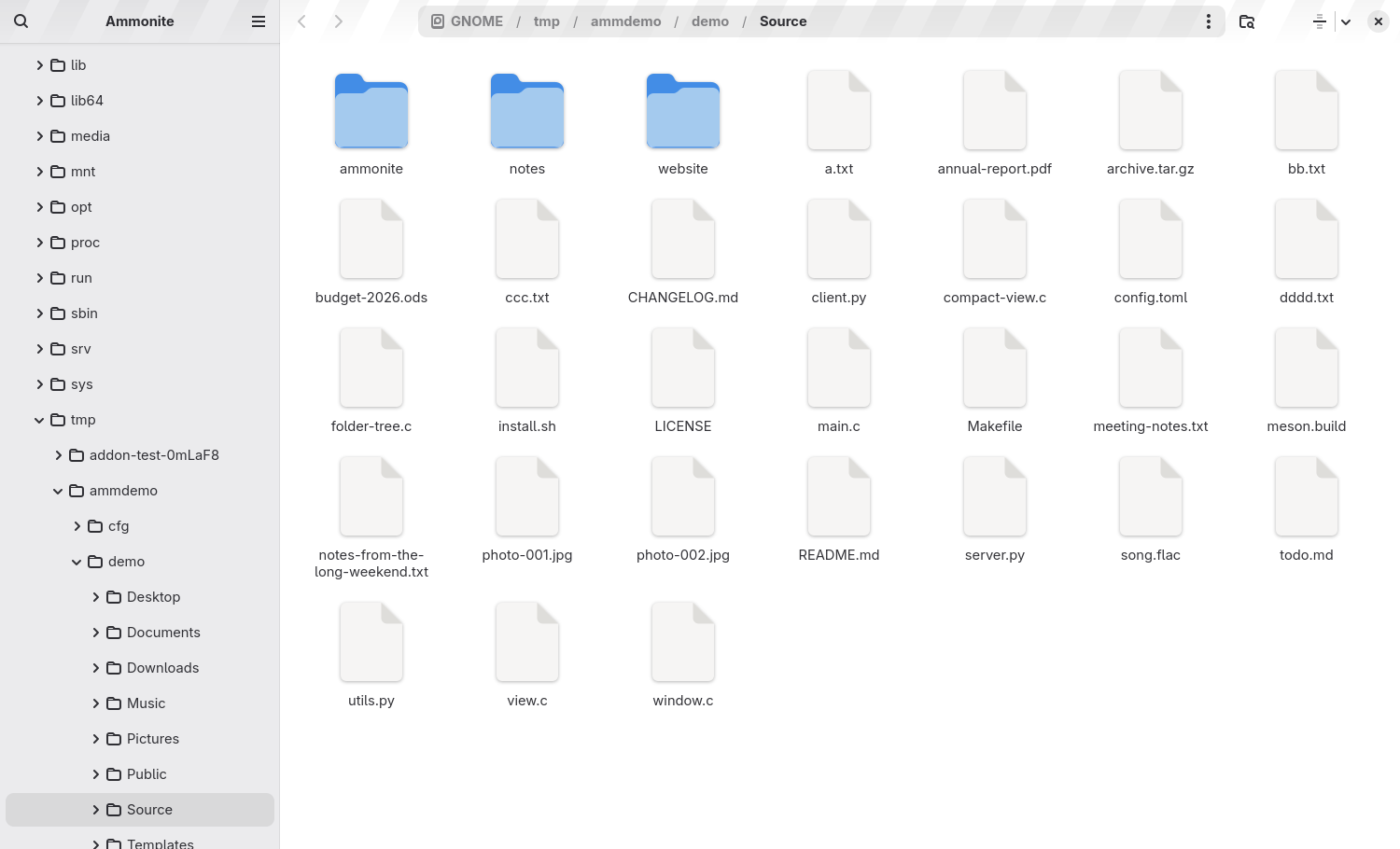
The Ammonite window with a folder tree in the sidebar and files shown as icons
Ammonite with the folder tree in the sidebar.
The short version

Old-fashioned, and missing the tree

By Ross WD Cameron, who maintains Ammonite.

I'm old fashioned. I learned to find my way around a computer with a tree on the left and my files on the right. Open a folder, see what's inside, open the next one, and always be able to see where you are in the whole hierarchy.

Then I moved to GNOME, and I love it. The design is calm, consistent and thoughtful. Libadwaita, the header bars, the typography, the way everything simply fits together. I wouldn't want to go back.

But the file manager has no tree. Not an option buried in a menu, not an extension. It has a list of places, and you navigate from there, one folder at a time, with a breadcrumb for company.

I didn't want a different desktop. I wanted GNOME Files, with a tree.

So that's Ammonite. It is not a redesign and not a rebellion. It is GNOME Files with a tree, and since then a few more things from the file managers I grew up with, made by someone who loves the rest of it too much to leave.
The itch

Why a tree matters

Breadcrumbs tell you where you are. A tree shows you where everything else is.

1

You see the whole shape

Deeply nested projects, archives and backups are easier to hold in your head when you can see siblings and parents at the same time.

2

Moving things is direct

Dragging a file to a folder three levels up is trivial when that folder is already on screen, rather than something you navigate to and back from.

3

Muscle memory carries over

Decades of habit don't evaporate because the toolkit changed. A tree is a very old idea, and it is still a good one.

What's different

Features

Everything GNOME Files does, plus the things a long-time file manager user misses. All screenshots below are of Ammonite itself.

Folder tree

A tree in the sidebar

The sidebar shows an expandable tree of your folders instead of a list of places, so you always see where you are in the whole hierarchy. It is on by default on a fresh install. If you prefer the classic places list, switch it off in Preferences → General → Folder Tree in Sidebar.

  • Expand and collapse folders with the arrows, or double-click them.
  • Drag files onto any folder in the tree to move or copy them there.
  • Drag the edge of the sidebar to resize it, and press F9 to show or hide it.
Ammonite showing the folder tree in the sidebar
The folder tree, with the current folder highlighted.
Compact layout

Columns that are only as wide as they need to be

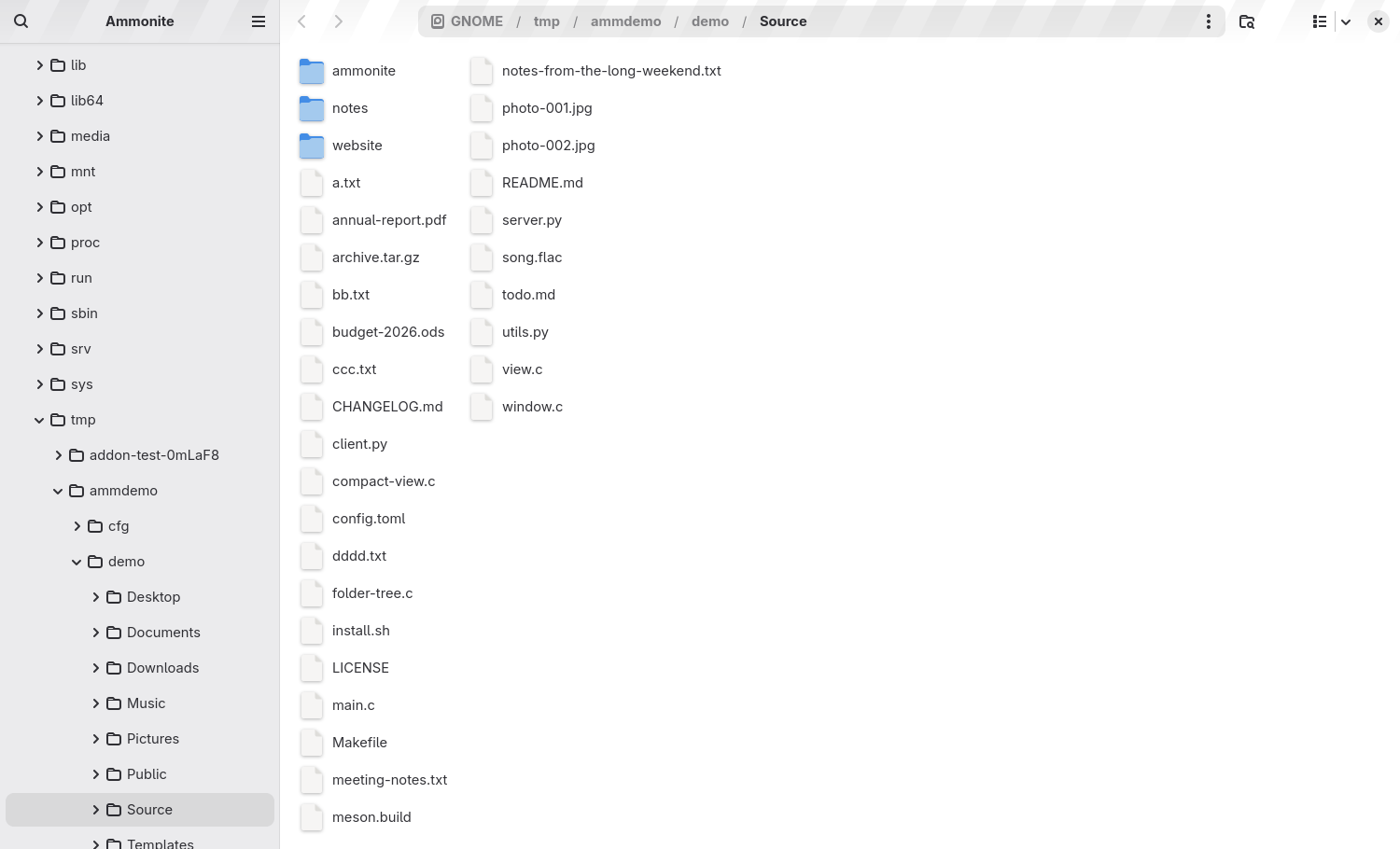
The compact layout lists items one per line, filling each column from top to bottom before starting the next. Each column is exactly as wide as its own longest name, so short names don't waste space next to a long one. Many more files fit on screen, and the view scrolls sideways when there are too many.

  • Switch to it with Ctrl+3, or from the view button in the toolbar.
  • Ctrl+1 is the list view and Ctrl+2 is the icon grid.
  • Selection, rubber-band selection, drag and drop, keyboard navigation and the context menu all work as in the other views.
  • Zoom changes the icon size.
Ammonite's compact layout, with files in columns of different widths
Compact layout. The first column is narrower than the second.
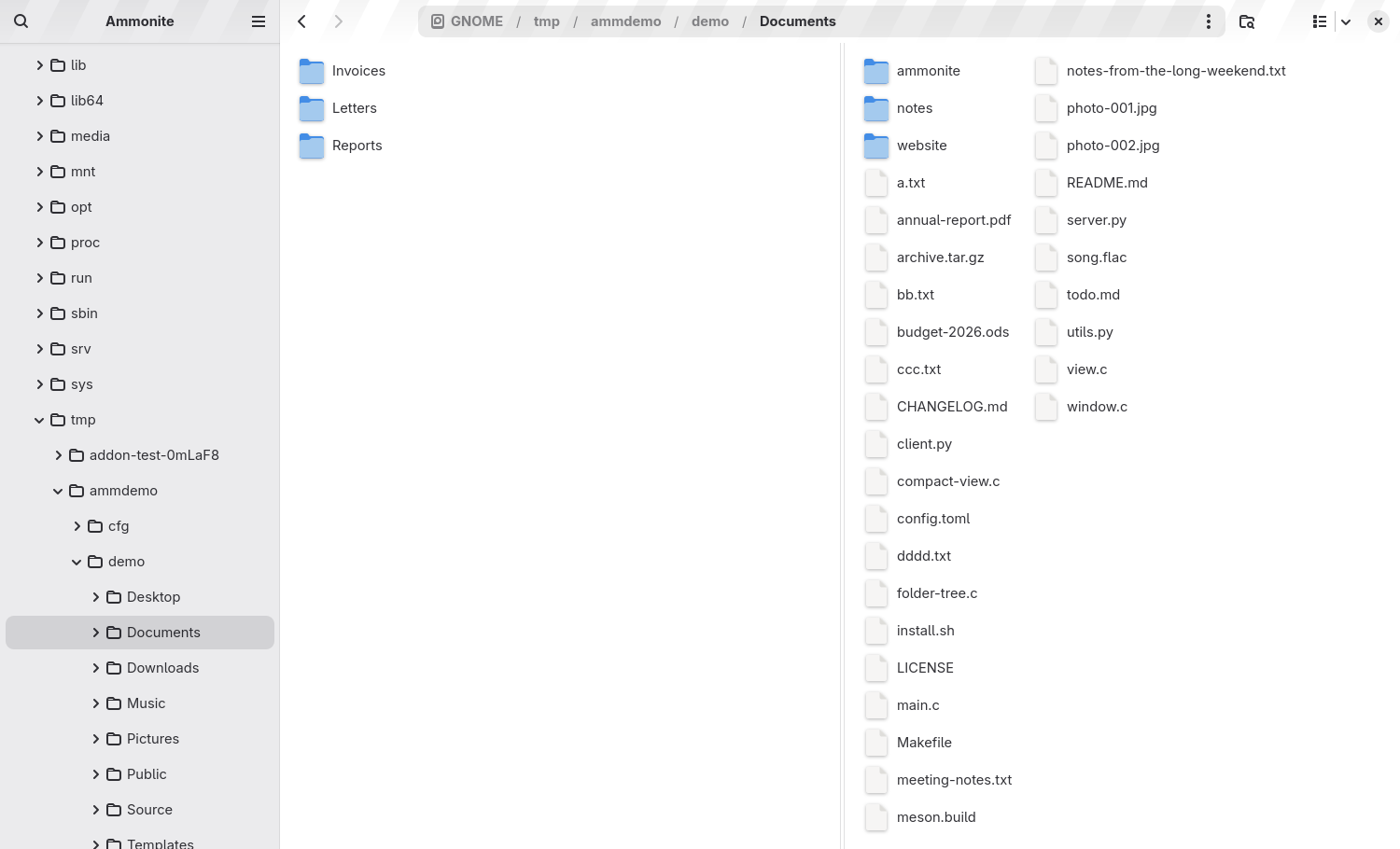
Ammonite in two-pane mode, with two different folders side by side
Two panes, each showing its own folder.
Two-pane mode

Two folders, side by side

Press F3 to split the current tab into two panes, and press it again to go back to one. It is also in the main menu as Two Panes. The new pane opens at the same folder.

  • The pane you last clicked in or focused is the active one. The toolbar, the sidebar and keyboard shortcuts act on it.
  • Clicking a folder in the sidebar tree opens it in the active pane.
  • Each pane has its own location, history and view mode, so one can be a list and the other compact.
  • Drag files from one pane to the other to copy or move them.
  • Two-pane mode belongs to a tab. Other tabs are unaffected.

The F3 shortcut works while a file view has focus.

Scripts

Your own actions in the right-click menu

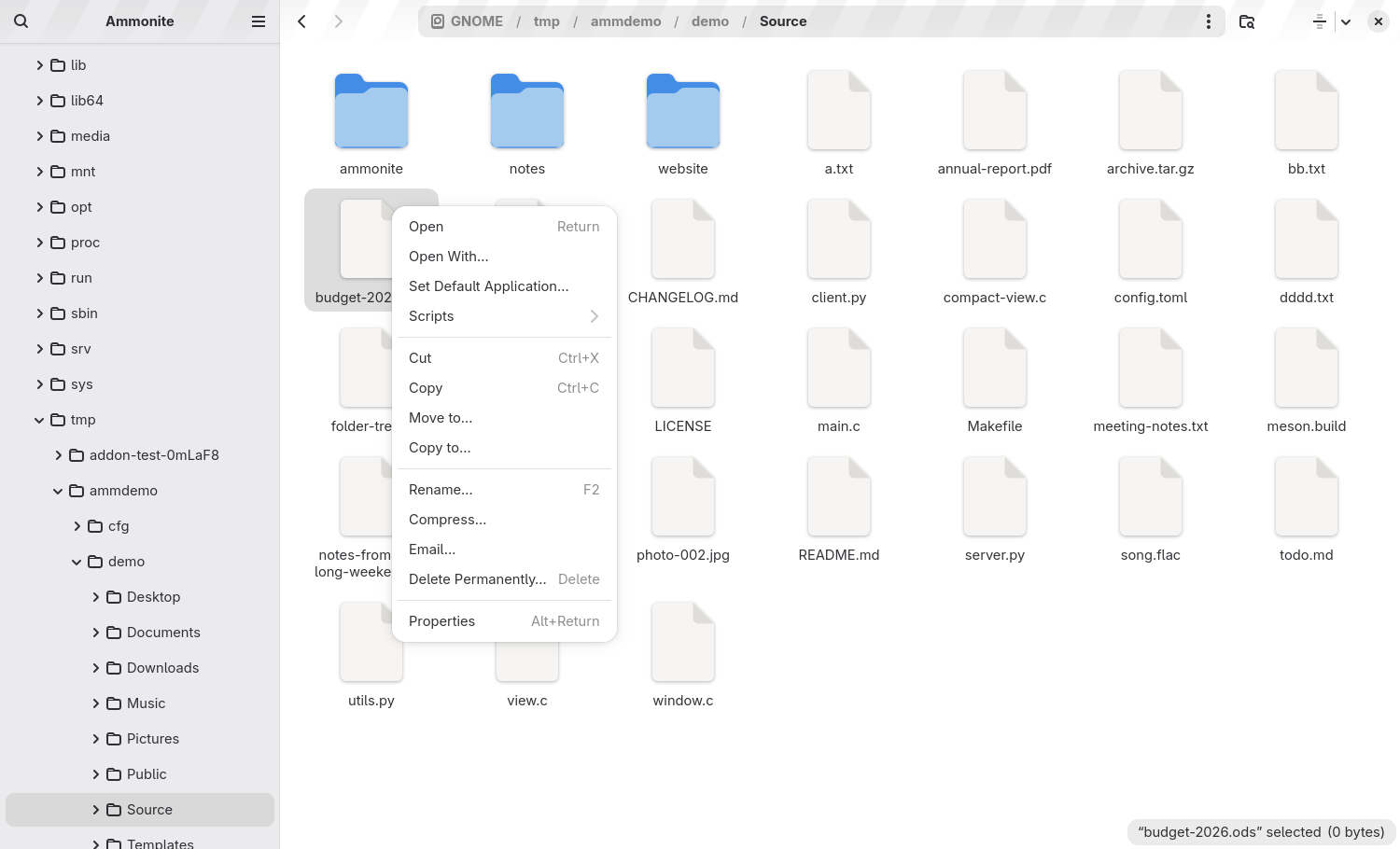
Put an executable file in the scripts folder and it appears under Scripts in the context menu. Ammonite runs it in the folder you are looking at and passes it the selected files, so a few lines of shell can resize images, make backups, rename in bulk or call any tool you like.

  • Sub-folders become sub-menus.
  • The selection is passed as arguments and in AMMONITE_SCRIPT_* environment variables.
  • Give a script its own keyboard shortcut.

Read the scripting documentation

The Ammonite context menu with a Scripts entry
The context menu with its Scripts entry.
And everything else

The rest of GNOME Files, kept

The reason to fork rather than start over is that almost everything was already right.

Four ways to look

Icon grid, list, tree list and the new compact layout.

Search

Fast search and metadata through LocalSearch, locally and across the network.

Tabs

Browse in tabs, with a tab overview, and drag tabs out into their own windows.

Removable media & network

Read and write to and from removable media and network locations.

Open in Terminal

Open a terminal in the current or selected folder, using your system's default terminal.

Default file manager

The Flatpak can act as your default file manager, so other apps open folders in Ammonite.

Extensions

Extend it through libammonite-extension.

GNOME design

GTK 4 and libadwaita, with the same adaptive layout, header bar and look as the rest of your desktop.

Sandbox-friendly

Builds as a Flatpak as org.ammonite.Ammonite, and uses Bubblewrap for thumbnailing.

Honesty section

This is a fork, and that has consequences

Ammonite is a fork of GNOME Files (Nautilus), with great respect for the people who build it. Version 1.0.0 is based on Nautilus 51.0.1, which is upstream version 52.alpha. Upstream made a design decision, and I'm not arguing it's wrong for everyone. I just wanted something different for me.

AreaAmmonite
Name & app IDAmmonite, org.ammonite.Ammonite, with its own GSettings schemas.
Extension APIlibammonite-extension. Extensions written for Nautilus, such as nautilus-python ones, are not compatible.
Upstream changesMerging them requires the rename to be applied.
VersionsMAJOR.MINOR.MICRO with GNOME-style pre-releases. Major bumps only for breaking changes.

If you are happy with GNOME Files as it is, use it. It's excellent. Ammonite is for those of us who wanted a tree, a compact view, two panes and scripts.

The name

Why “Ammonite”?

Nautilus is a living cephalopod with a spiral shell, and the file manager takes its name from it. Ammonites were its long-extinct relatives, and also spiral shells, from a time when things were simpler and there were trees to climb.

An older relative, for an older habit.

Get it

Build the Flatpak

The manifest builds from your checkout and needs the GNOME Nightly runtime (org.gnome.Platform//master).

flatpak run org.flatpak.Builder --user --install --force-clean \
  build-dir build-aux/flatpak/org.ammonite.Ammonite.json
flatpak run org.ammonite.Ammonite.Devel

The folder tree is on by default. You can turn it off in Preferences → General → Folder Tree in Sidebar.

Runtime dependencies: Bubblewrap, LocalSearch (with all features enabled) and xdg-user-dirs-gtk. Licensed GPL-3.0-or-later.

Thank you

Credit where it's due

The Caja-style compact layout and scripting came from a suggestion by @vermaden on X. Thank you.